In my last article on social media, I shared steps that content creators could take to ensure their content was presented in an accessible way. In this article, I flip the table, focusing on the capabilities and limitations of the platforms.
Social platforms vary widely in how they support digital accessibility. Some (like Bluesky) require image alt-text for every post, while others only allow it (LinkedIn, Facebook/Instagram, X, TikTok, Mastodon, Threads). Video captioning is mature on video-centric sites: YouTube and Facebook let creators upload captions and even offer auto-generated transcripts, whereas platforms like TikTok and LinkedIn have more rudimentary caption tools. Audio description tracks are rare natively (mostly nonexistent outside of specialized video services), so practitioners often rely on transcripts or descriptive post captions when required. Emojis and emoticons generally work across sites, but may be read character-by-character by screen readers; using them sparingly or including a textual clue can improve clarity. Likewise, properly camel-cased hashtags (capitals on each word) are a low-effort way to ensure screen readers parse multi-word tags correctly.
Overall, strengths include robust alt-text fields on many networks and auto-caption features on major video platforms; weaknesses include inconsistent support for captions and transcripts (especially on short-video apps), limited audio description, and spotty keyboard/screen-reader navigation on some mobile apps. The following table compares key features by platform, and the bullets that follow the table outline each platform’s strengths and pain points.
Major Accessibility Feature Rollouts (Social Media)
| 2016 | 2018 | 2021 | 2022 | 2023 | 2024 | 2025 |
|---|---|---|---|---|---|---|
| Twitter introduces manual image descriptions | Instagram adds alt-text fields on photo posts | TikTok launches auto-caption sticker for videos | Twitter rolls out global ALT badge and 1000 character image descriptions | LinkedIn integrates Immersive Reader (read-aloud) | Meta’s Threads (Instagram spin-off) debuts (with image alt-text support) | Bluesky enforces mandatory alt-text on images |
Social Media Platform Accessibility Strengths & Weaknesses
| Image Alt-Text | Video Captions | Audio Description | Transcripts (audio) | Emojis | Hashtag Parsing (CamelCase) | Notes / UI Access |
|---|---|---|---|---|---|---|
| Manual (up to 1000 chars); mobile editor supports adding it | None native on posts (no caption upload for feed videos) | None | Text posts only (no audio rooms) | Yes (screen readers read names) | Supports CamelCase (but writer must do it) | Web UI bug noted when adding alt-text (currently fixed on mobile). Immersive Reader (read-aloud) added in 2023. |
Strengths
- Generous alt-text capacity. LinkedIn lets you write image alt text of up to 1,000 characters. That’s enough room to do the job properly: you can convey an image’s purpose, summarize a chart’s key findings, or capture the essential details of an infographic without trimming your description to fit.
- Reader-friendly viewing options. LinkedIn’s Immersive Reader and dark-mode interface help people who benefit from adjustable, lower-glare, or simplified reading experiences. These features support users with low vision, light sensitivity, dyslexia, and cognitive disabilities, and they improve comfort for anyone reading long-form posts and articles.
Weaknesses
- No native caption upload for feed videos. This is LinkedIn’s most significant gap. Without a way to attach a caption file to a feed video, you can’t rely on the platform to deliver accurate, reviewed captions. The workaround is to burn open captions directly into the video before you upload it, so the captions travel with the content and every viewer sees them.
- Alt-text bugs on desktop. Adding alt text on desktop has been unreliable, though LinkedIn has recently fixed these problems. Even so, verify that your alt text saved correctly before you publish, particularly if your team posts from multiple devices.
- A clunky authoring experience on the web. The web interface for adding accessibility information isn’t always intuitive. Creators who don’t know where to look may skip alt text altogether, so build the step into your workflow rather than trusting the interface to prompt you.
- Inconsistency between mobile and web. Alt text and caption options differ depending on whether you post from the mobile app or the web. A feature you used successfully on one may be missing or behave differently on the other. Establish a standard publishing method for your team, and test your content on both before you assume it works everywhere.
What this means for you
LinkedIn gives you real room to describe images well, but it leaves video accessibility largely in your hands. Treat open captions as your default for video, write full alt text for every meaningful image, and confirm your accessibility features appear on both web and mobile before you publish.
Facebook / Instagram (Meta)
| Image Alt-Text | Video Captions | Audio Description | Transcripts (audio) | Emojis | Hashtag Parsing (CamelCase) | Notes / UI Access |
|---|---|---|---|---|---|---|
| Manual on post uploads; auto-generated fallback descriptions | Facebook: can upload SRT captions on videos (and FB Live auto-captions). Instagram: IGTV supports captions, Reels now allow captions sticker. | None native; users can pre-produce audio-described video | Facebook: Live auto-captions (English), Instagram: no transcript for stories | Full emoji support (screen readers speak them) | CamelCase recommended | Meta auto‑generates image alt but its accuracy is limited. Some UI quirks: adding captions on Instagram Reels launched 2023; stories lack alt-text fields. |
Meta’s platforms offer more accessibility tooling than most, but the gaps show up in the places where social teams work fastest: Stories, Reels, and scheduling tools.
Strengths
- Custom alt text on uploads. Facebook and Instagram both let you write your own alt text when you upload an image. That control matters. You decide what the image communicates instead of leaving the decision to an algorithm.
- An automatic safety net. If you don’t supply alt text, Meta generates an image description for you. It isn’t a substitute for your own writing, but it gives screen reader users something to work with when a post would otherwise have nothing.
- Caption file uploads. Facebook lets you upload .srt caption files with your videos. You can fix errors in names, acronyms, and technical terms before you publish instead of relying on speech recognition to get them right.
- Auto-captions on Live streams. Live video is among the hardest formats to make accessible, and Facebook offers automatic captioning for it. Accuracy will vary, but real-time captions beat none.
- Viewer controls for captions. The interface lets viewers adjust caption size and color. Readability needs differ from person to person, and these controls put the choice in the viewer’s hands.
Weaknesses
- Auto-generated alt text misses the point. Automated descriptions tend to identify objects and miss meaning. They might say “a group of people standing indoors” when your post is about the keynote speaker accepting an award. They also can’t read the purpose of a chart or infographic. Treat the auto-description as a fallback, never a plan.
- No on-platform audio description. Facebook offers no way to attach audio description to a video. Captions cover the dialogue, but nothing conveys the visual information. If you want blind and low-vision viewers to get the full message, you have to build the description into your narration or add a video description to the post text.
- Stories and Reels lag behind. Standard feed posts get the strongest support. Stories and Reels, the formats many organizations now prioritize, offer less robust caption and alt text options. The format that drives the most engagement often has the weakest accessibility tooling.
- Business Suite complicates the workflow. Meta removed alt text from Business Suite in April 2026. Many teams schedule and publish through that tool, so they now face a choice: skip alt text, post natively just to add it, or use a different workflow entirely. A tooling change like this can quietly erode an accessibility practice that took years to build.
What this means for you
Use Meta’s native features wherever they exist, and plan for the gaps:
- Write your own alt text for every feed image instead of relying on the auto-generated version.
- Upload your own .srt files for video, and review any auto-captions on Live streams afterward.
- Describe visuals in the narration or post text to compensate for the lack of audio description.
- Repeat key details in the post text for Stories and Reels, where caption and alt text support falls short.
- Check your publishing workflow. If your team schedules through Business Suite, decide where alt text now gets added, and make that step explicit.
Meta gives you strong tools but doesn’t guarantee they’ll reach every format or workflow. The responsibility for equivalent access stays with you.
X (Twitter)
| Image Alt-Text | Video Captions | Audio Description | Transcripts (audio) | Emojis | Hashtag Parsing (CamelCase) | Notes / UI Access |
|---|---|---|---|---|---|---|
| Manual on upload (add description) up to 1000 chars; ALT badge shows description | No native captions upload for videos; Spaces audio has live captions (moderator‑enabled) | No native audio-description | Spaces: Live captions; Tweets: no audio transcripts | Fully supports emojis (with screen‑reader naming) | CamelCase fully supported | Alt text made prominent in 2022. Older UI hid the feature, but now ALT badge makes descriptions visible. No easy way to add captions to tweet videos (Creators must burn captions in video). |
X is a study in contrasts. Its image accessibility is mature and visible. Its video accessibility depends on how much work you’re willing to do yourself.
Strengths
- Generous, well-signaled alt text. X gives you 1,000 characters for each image description, and a visible ALT badge appears in the corner of the image. Readers select the badge to see the description, and multi-image posts let you describe each image separately. That badge matters beyond the person using a screen reader. It signals that you’ve done the work, and it shows everyone else what good practice looks like.
- Room to write well. X notes that some screen readers once stopped reading at 200 to 250 characters, which is why the limit was raised. The extra space lets you describe a chart’s trend, include the text that appears in an image, and give context without cramming. X’s own guidance also advises writing out any text in the image and skipping filler like “Photo of.” That’s sound advice on any platform.
- Caption file uploads. You can attach an SRT caption file to a video when you create a post, and the language name appears under the video once the file is attached. That means you control accuracy instead of trusting speech recognition. Verified subscribers can also add captions to videos through Media Studio.
Weaknesses
- Captioning is hard to reach. Some university guidance reports that captions can only be added to videos uploaded through the browser. Another institution’s guidance lists the feature as desktop only. If your social team posts from phones, the accessible workflow can quietly break.
- Little automation to fall back on. One university’s guidance says X doesn’t currently support auto-captions for videos, Spaces, or voice posts. RNID reports that X claims captions are generated automatically, but recommends uploading your own SRT file anyway. Sources disagree here, so verify the current behavior in your own account. Either way, plan to supply your own captions. X also doesn’t generate alt text automatically, unlike some other platforms. If you skip the description, nobody writes it for you.
- Viewers struggle to find captions. The CC control sits in a different place on each device: next to the volume control on desktop, under a cog icon on iOS, and under a three-dot menu on Android. RNID also observes that most videos on X lack closed captions, and creators more often burn captions into the video itself. Burned-in captions work for viewers, but they can’t be turned off, resized, or translated, and they don’t help screen reader users.
What this means for you
Use X’s alt text fully. Write real descriptions, not placeholders, and use the space to carry the information the image contains. For video, treat captions as your responsibility: prepare an accurate SRT file, upload it from a desktop browser, and describe key visuals in your narration or post text. X gives you the tools for part of the job, and the playbook covers the rest.
TikTock
TikTok is fast, visual, and built for mobile. That speed is what makes it popular, and it is also what makes accessibility difficult. The platform has made some smart moves, but significant gaps remain.
| Image Alt-Text | Video Captions | Audio Description | Transcripts (audio) | Emojis | Hashtag Parsing (CamelCase) | Notes / UI Access |
|---|---|---|---|---|---|---|
| Manual on images/cover (300 char limit); no requirement | Auto-caption sticker (optional) for English (launched ~2021), but accuracy often ~60–70%. No SRT upload. | No native audio-description track | N/A (no audio-only posts) | Rich emoji support (few restrictions) | CamelCase recommended | Captions must be added via sticker or edited text. No transcripts. UI is primarily mobile, with limited keyboard navigation reported. |
Strengths
- Auto-captions for video. TikTok recognized that deaf and hard-of-hearing users need access to spoken content, and it built an auto-caption sticker to deliver it. Creators can add captions to their videos in English and several other languages, which also helps viewers who watch on mute, learn a language, or scroll in noisy places.
- Fast, flexible emoji and tagging. TikTok makes emojis and tags quick to add, which supports the playful, conversational style that audiences expect. Used sparingly, and never as a replacement for words, they can reinforce your message without getting in the way.
- Improving navigation. The app is still mobile-first, but keyboard navigation has improved, which gives creators and viewers more ways to interact with the platform.
Weaknesses
- No alt text for images. TikTok offers no way to add descriptive alt text to image content. The only exception is the profile picture. Any photo or graphic you post carries no built-in text alternative, so you need to supply the description yourself.
- Caption accuracy can be low. The auto-caption sticker is a good start, but it is only a start. Automated captions can stumble on names, acronyms, technical terms, numbers, and multiple speakers. Review and correct every caption before you publish.
- No transcript or audio description. TikTok provides no transcription feature and no audio description. Captions can’t convey what viewers who are blind or have low vision need to know about the visuals, and the platform gives you no native place to put that information.
- Screen-reader quirks. Navigation has improved, but screen-reader users still run into friction, particularly when commenting. Because the app is so mobile-heavy, these quirks can make participation harder for people who rely on assistive technology.
What this means for you
TikTok’s gaps don’t excuse you from the accessibility obligation. They change how you meet it:
- Review and edit your captions. Treat auto-captions as a draft, not a finished product.
- Narrate your visuals. If the screen shows a chart, product, or demonstration, describe it aloud so the information exists in the audio.
- Describe in the post. Add a short description of important visuals to your post text, since there is no alt text field to hold it.
- Link to a fuller version. For longer content, publish a transcript or description on an accessible webpage and link to it.
- Use emojis with care. Place them at the end of a sentence for emphasis, and keep the meaning in words.
TikTok gives creators a head start with captions, but it leaves the rest of the job to you. Plan for equivalence, not just for the features the platform happens to offer.
YouTube
| Image Alt-Text | Video Captions | Audio Description | Transcripts (audio) | Emojis | Hashtag Parsing (CamelCase) | Notes / UI Access |
|---|---|---|---|---|---|---|
| N/A (video-only content) | Closed captions: automatic ASR in 100+ languages (editable by creators), plus manual SRT uploads. Easily viewable transcript panel. | Audio Descriptions: Supported by uploading a second audio track (few creators do this); no UI toggle. | Automatic transcripts: Every video has an ASR transcript (viewable, but requires cleaning). | Emoji in titles/comments are read out by screen readers as their short name. | CamelCase supported in descriptions/tags. | The gold standard for video a11y. Users can turn on caption size/color controls. Emote high-contrast UI and robust keyboard nav. Weakness: auto-captions can be error-prone. |
Strengths
YouTube is the industry leader for video accessibility, and it has earned that position by building support into every stage of the workflow, from upload to playback.
- Captions are nearly universal. Automatic captions appear on almost every uploaded video, which gives viewers a baseline of access before a creator does anything. Creators can edit those captions to fix errors, or skip auto-captioning entirely and upload their own caption files. Either way, they keep full control over what viewers read.
- Transcripts are fully supported. Creators can publish transcripts alongside their videos, and viewers can open them directly in the player. Screen readers can extract the complete transcript, which gives blind and low-vision users, as well as anyone who prefers reading to watching, a text version of the content.
- The player puts control in the viewer’s hands. Built-in toggles turn captions on and off, and adjustable display options let viewers change how captions look to suit their vision and reading preferences. Few platforms give viewers this much flexibility without extra tools.
Weaknesses
Strong tools don’t guarantee accessible content, and YouTube’s gaps show up where creators rely too heavily on automation.
- Unreviewed auto-captions produce errors. Because auto-captions are so easy to ignore, many creators publish them as-is. Speech recognition stumbles on names, technical terms, acronyms, numbers, and overlapping speakers. The feature that makes YouTube accessible by default can also lull creators into skipping the review that makes captions accurate.
- The interface can be difficult to navigate. YouTube’s player and page layout are complex, and that complexity can challenge some keyboard users. Reaching controls, moving through menus, and managing focus take more effort than they should.
- Audio description is rare. True audio-description tracks exist only when creators add them, and very few do. Captions can’t describe a chart, a demonstration, or a change of scene, so blind and low-vision viewers miss visual information in most videos.
What This Means for You
YouTube gives you the foundation, but you have to finish the job.
- Review and correct every auto-caption before or immediately after you publish.
- Describe key visuals in your narration, since a separate audio-description track is unlikely to exist.
- Publish a descriptive transcript or add a video description in the post when important visual information would otherwise go unexplained.
Use the platform’s strengths, and cover its weaknesses with your own content strategy.
Threads
Threads is text-first, which gives it a natural accessibility head start. It is also young, and some of its gaps show it.
| Image Alt-Text | Video Captions | Audio Description | Transcripts (audio) | Emojis | Hashtag Parsing (CamelCase) | Notes / UI Access |
|---|---|---|---|---|---|---|
| Manual on images (Meta platform) | No captions (primarily text & images; limited video support) | N/A | N/A | Yes (same as IG) | CamelCase fully supported | Alt-text can be added on image posts (auto-alt also generated like IG). As of 2025, largely text-based, so primary accessibility needs align with Instagram’s. |
Strengths
- Text-first design. Most Threads posts are plain text, the format that works best with screen readers, magnification, and translation tools. When your core message lives in words, you don’t need workarounds to make it accessible.
- Alt text on images and video. Threads added the option to attach custom alt text to photos and videos. To add it, attach an image, tap the Alt badge at the bottom left of the image, enter your description, and post.
- Instagram’s accessibility foundation. As part of Meta, Threads inherits some of Instagram’s approach. Meta said at launch that core Instagram accessibility features, such as screen reader support and AI-generated image descriptions, are also enabled on Threads. That gives creators a fallback when they don’t write their own descriptions, though a fallback is not a substitute.
Weaknesses
- No built-in video captions. Threads doesn’t have built-in captioning for videos, so creators need to add captions in an external editor before uploading. The practical fix is open (burned-in) captions, and you should review them for accuracy before you post.
- AI alt text can’t carry meaning on its own. Automated descriptions often miss the point. In one accessibility test, a photo of a framed certificate received the unhelpful AI-generated description “May be an image of text.” Write your own alt text whenever you can. If you can’t, put the key information in the post.
- Alt text limits and visibility. One review noted a 500-character limit on alt text, which can fall short for complex images. For charts and infographics, summarize the essentials in the alt text and put the full detail in the post or on a linked accessible page. Also, viewing alt text requires turning on “Show alt text” in the Accessibility settings. Don’t assume your sighted audience will ever see it.
- Few reader controls. Early critiques noted that Threads doesn’t let users change fonts, adjust text size, or improve color contrast. Testers also found some text that failed WCAG contrast requirements in both light and dark mode. You can’t fix this as a creator, but you can keep your own graphics high-contrast and keep key information in text.
- No audio content, so no transcript need. Threads has no voice rooms or native audio-first format, so transcripts mostly don’t apply. If you link to a podcast or audio clip, link to its transcript too.
What This Means for You
Threads rewards organizations that write well. Lead with clear text, write your own alt text, caption your videos before uploading, and put critical details in the post itself. Treat Threads’ accessibility features as a floor, not a ceiling.
Bluesky
| Image Alt-Text | Video Captions | Audio Description | Transcripts (audio) | Emojis | Hashtag Parsing (CamelCase) | Notes / UI Access |
|---|---|---|---|---|---|---|
| Required: must enter alt-text on image upload (up to 2000 chars) | None (currently images & text only) | N/A | N/A | Limited (does support Unicode emojis; no custom emote syntax) | CamelCase supported | Unique among platforms: posting an image without alt-text is blocked. Minimal multimedia features yet; focus is on text/image. Screen-reader users get the alt-text for images by design. |
Strengths
- Alt text is a core part of the culture and the product. Bluesky allows alt text up to 2,000 characters, enough for a thorough description of a chart or infographic. An alt text badge appears in the lower right corner of images that have descriptions, so everyone can see at a glance which posts are described. That visibility nudges the community toward better habits.
- You can make alt text a requirement. The platform doesn’t enforce alt text automatically, but you can enable “Require alt text before posting” under Settings > Accessibility. Turn it on, and you can’t publish an undescribed image by accident. For organizations, that’s a simple safeguard against a forgotten step.
- Alt text covers more than still images. Bluesky supports alt text for static images, GIFs, and even videos. That is a broader reach than many platforms offer.
- Captions are possible for video. Bluesky doesn’t generate captions for you, but you can upload a VTT caption file directly on desktop, in the box beneath the alt text field. That lets you publish captions you’ve reviewed and corrected, which is better than relying on automatic speech recognition.
- Users get control over how media behaves. Settings let people disable autoplay for videos and GIFs and display larger alt text badges. These options help people with low vision, motion sensitivity, or attention-related needs.
- Alt text is discoverable. Search can find keywords inside alt text, so a well-written description helps people find your content, not just access it.
- The interface is clean and text-forward. The simple layout works well with screen readers and keeps the focus on the message.
Weaknesses
- You can’t edit alt text after publishing. Alt text can’t be changed once a post is live. A typo or a missing detail means deleting and reposting, so draft descriptions carefully before you hit publish.
- Video descriptions are effectively invisible to sighted viewers. One accessibility advocate notes that alt text on a video has no visible overlay like the one images get. A written description helps screen reader users, but it’s no substitute for audio description. Describe important visuals in your narration or in the post text.
- Captions require extra work. Nothing is generated automatically, so you’ll need to produce a VTT file with a captioning tool, check it, and upload it. Third-party schedulers are starting to support this, but the process isn’t built into every workflow.
- Media options remain limited. There is no native audio posting, so podcasts and voice clips need a link to an external transcript. Posts also have tight limits on text length and the number of images, which makes it hard to carry detailed explanations in the post itself.
- Some tools are still evolving. The accessibility settings aren’t always easy to find, and some of the strongest features, like the alt text requirement, are off by default. Features and interface components are still changing, so check the settings periodically.
What this means for you
Bluesky is one of the best places to practice image accessibility, and its tools for video are improving. Treat its gaps as a reminder of the playbook: put critical information in the post, host transcripts elsewhere, and write careful descriptions before publishing, since you can’t fix them afterward.
Mastadon
| Image Alt-Text | Video Captions | Audio Description | Transcripts (audio) | Emojis | Hashtag Parsing (CamelCase) | Notes / UI Access |
|---|---|---|---|---|---|---|
| Manual on images (accessible-media description); optional but recommended | No built-in captions; videos max 99MB but captions must be embedded in video | No native audio-description | No transcripts; audio attachments are for podcasts (creator must provide text) | Full emoji/custom-emote support (names read by screen readers) | CamelCase supported (server-dependent trending) | Official clients prompt for “media description” when posting. Decentralized forks mean a11y can vary by app, but core supports alt-text. No universal caption feature (users can embed captions in video itself). |
Strengths
- Alt text is part of the culture, not just the interface. Mastodon is open-source and federated, and image descriptions have been a core part of its design for years. Its official apps prompt you to add a “media description (ALT text)” and explain why it matters to screen-reader users. Many Mastodon communities treat alt text as a basic courtesy, and some members will politely nudge you when you skip it. For accessibility, a platform whose users expect descriptions is a real advantage.
- Alt text stays editable. Mastodon lets you edit a post after publishing, so you can fix a missing or weak description instead of deleting the post and starting over. On platforms that lock alt text at publication, that flexibility matters.
- Room to write something useful. The generous description field means you can describe a chart, screenshot, or infographic properly. You rarely have to compress a description into a few words.
- Open ecosystem, active accessibility community. Because anyone can build a Mastodon client, accessibility-minded developers have created apps and tools that go further than the defaults.
Weaknesses
- No native caption support for video. Mastodon offers no way to upload a caption file and no auto-captioning. If your video needs captions, you must burn them in as open captions before you upload. That adds production work, and open captions can’t be turned off, resized, or restyled by the viewer. Check that burned-in text is large, high-contrast, and accurate.
- Audio and transcripts are on you. Mastodon treats audio files more like podcasts than a core format, and it provides no transcript field. If you post audio, publish the transcript yourself, in the post if it’s short or on an accessible webpage you link to.
- Audio description is not built in. Captions aren’t the only gap. As with other platforms, you’ll need to describe important visuals in your narration or in the post text.
- Experiences vary by app and instance. Federation is a strength, but it means the accessibility experience depends on which app and which server someone uses. Prompts, reminders, and display of descriptions can differ from one client to the next. You can’t assume every reader sees your content the way you posted it, so build the essential information into the post itself.
The Takeaway
Mastodon gives you strong tools for images and a community that values them. For video and audio, you’ll rely on the workarounds from our playbook: open captions, descriptive narration, and linked transcripts. Features change quickly, so confirm current capabilities in the official documentation before you build a workflow around them.
Recommendations
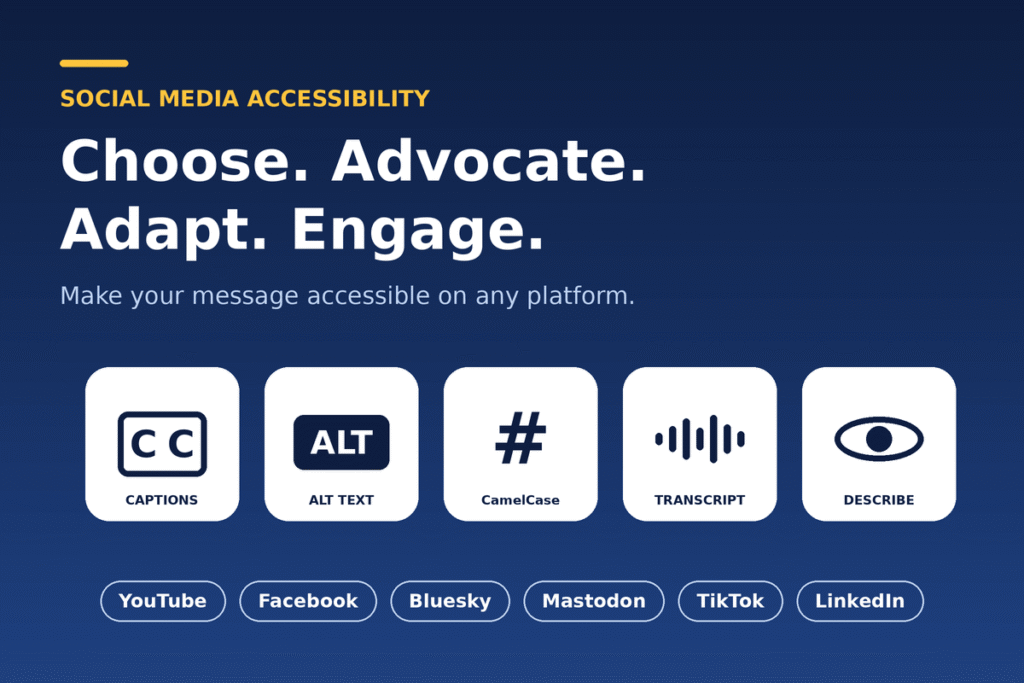
No platform is perfectly accessible, but some are far better than others. Four strategies help you get the most from the tools that exist and push for the ones that don’t: choose wisely, advocate, adapt, and engage.
1. Choose platforms wisely
Match the platform to the content, not just to the audience.
For video, start with YouTube and Facebook. YouTube offers automatic captioning that you can review and correct, which is practical for short videos. Facebook guidance likewise calls for captioning videos, including Facebook Live. Captions are only the baseline. Review auto-generated text for names, acronyms, and numbers, and check each platform’s current options for transcripts and playback controls before you commit to a format.
For image-heavy content, learn from Bluesky and Mastodon. Both have built a culture of describing images, though neither works quite as the common shorthand suggests:
- Bluesky doesn’t mandate alt text for everyone. It offers a “Require alt text before posting” setting under Settings > Accessibility, and you have to enable that setting separately on each device. Turn it on everywhere you post. Also note that alt text can’t be edited after publishing, so get it right the first time.
- Mastodon gives you room to be thorough. Its description limit is 1,500 characters, and you can edit a post afterward to add a missing description. A built-in setting warns you before you post media without alt text.
The lesson for your own workflow is that these platforms make description a habit instead of an afterthought. Build the same prompts into your publishing process wherever you post.
2. Advocate for improvement
Where a platform’s accessibility tools fall short, say so, and credit the progress that has been made.
TikTok shows how this works. It introduced auto captions in 2021, and creators can turn them on from the editing page. Viewers can switch them off from the share panel. But early coverage noted support for only American English and Japanese at launch, and one accessibility provider reported a rollout in select countries. The gaps worth pressing on are language coverage, regional availability, and caption editing. For other platforms where caption support is thin or hard to find, such as LinkedIn, check the current feature set and ask for auto-captions or simple caption-file upload.
You can also advocate by example:
- Write hashtags in CamelCase (#DigitalAccessibility).
- Describe your images and videos in every post.
- Share your methods openly so colleagues and peers adopt them.
When accessible posting is visible, it becomes the norm.
3. Leverage workarounds
When the native tools are missing, put the equivalent information where people can reach it.
- No caption feature? Burn open captions into the video, or include the essential dialogue in the post text or a pinned comment.
- No alt text field? Add an image description to the post copy, which also helps people who aren’t using assistive technology.
- No audio description? Narrate important visuals aloud, or add a written video description to the post.
- No transcript field? Host the transcript on an accessible page and link to it.
Treat a workaround as a design decision, not an apology. The platform delivers your message, and your own channels can deliver the accessible version of it.
4. Engage platform developers
Platforms respond to clear, specific, evidence-based requests, so make yours that way:
- Cite standards. WCAG 2.1 and the W3C’s authoring tool guidance give you a recognized benchmark. Platforms are authoring tools, so they carry a responsibility to help creators produce accessible content.
- Share real user experience. Describe what you couldn’t do and who was affected. Concrete examples carry more weight than general complaints.
- Ask for specific features. Request mandatory or default alt text prompts, consistent captioning across post types (including Stories and live video), and the ability to edit descriptions after publishing.
- Ask for standardization. Creators shouldn’t have to learn a different accessibility workflow for every app.
Choose the platforms that serve your content best. Praise what works, and press for what doesn’t. Build workarounds so no audience member is left behind, and keep telling platform developers what you need.
One thought on “Accessibility Capabilities of Social Media Platforms”